Please open this page in Chrome or Edge
Cellarise talks to your phone through a USB cable, straight from the web page. Only Google Chrome and Microsoft Edge (and browsers built on them, such as Brave and Opera) allow that.
Firefox and Safari don't support USB connections. On a phone or tablet, use a computer instead.
Prefer a program you install? Cellarise is also available as a Windows download.
Find out what your Android phone is giving away
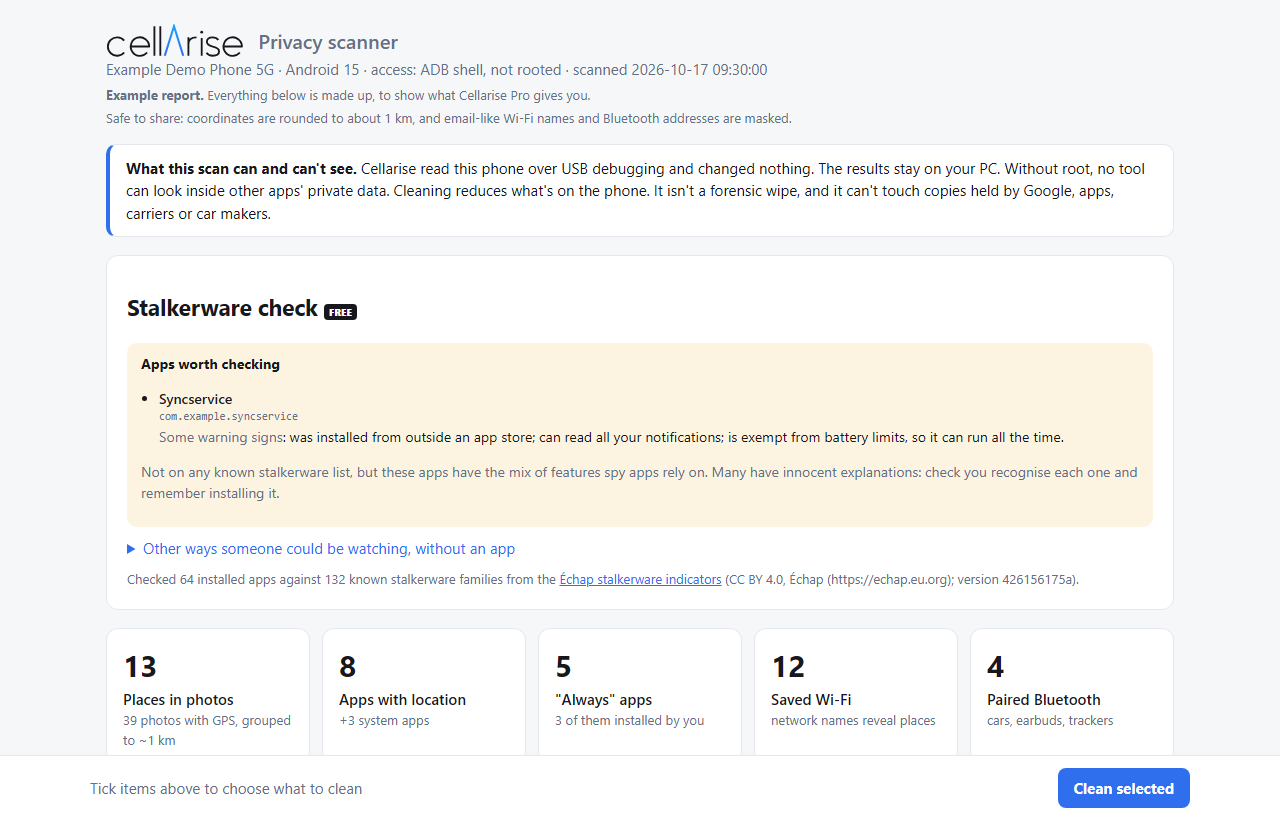
Cellarise reads your phone's own records and shows you, in plain English:
- Spy apps. 130+ known stalkerware and spy apps, including renamed copies, and warning signs in apps it doesn't know. Free.
- Microphone and camera. Which apps listened or used the camera, when, and how much they sent in the background.
- Your photos. Which ones reveal where they were taken, and where.
- Your settings. The ones that let apps track you or let others read your phone.
The link is app.mediumsoft.online
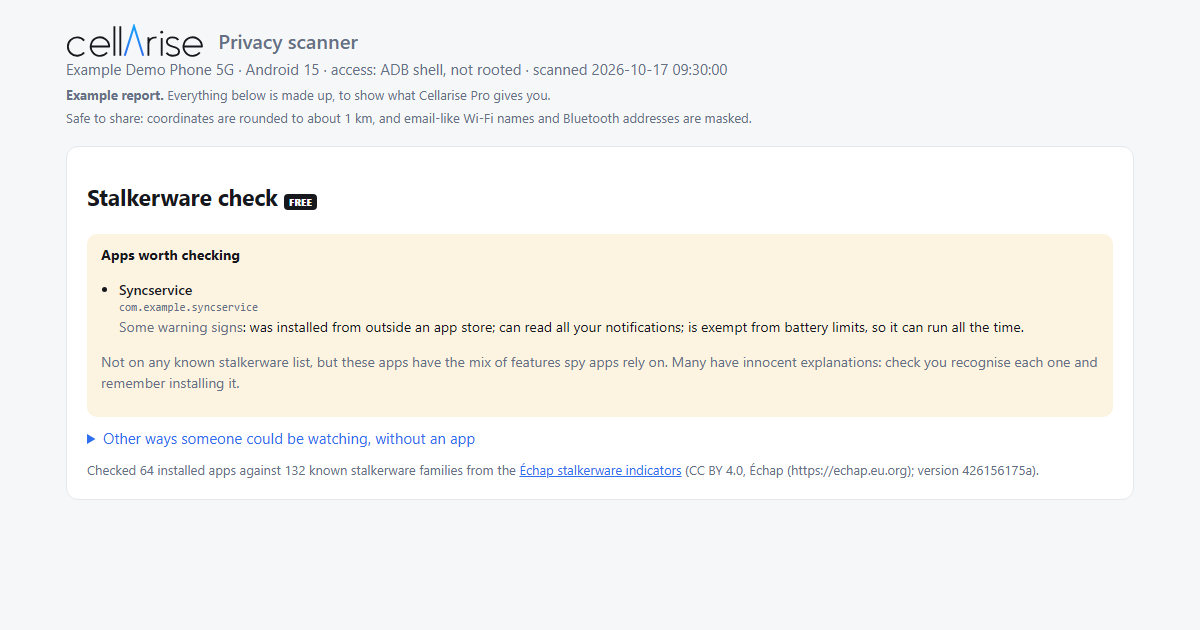
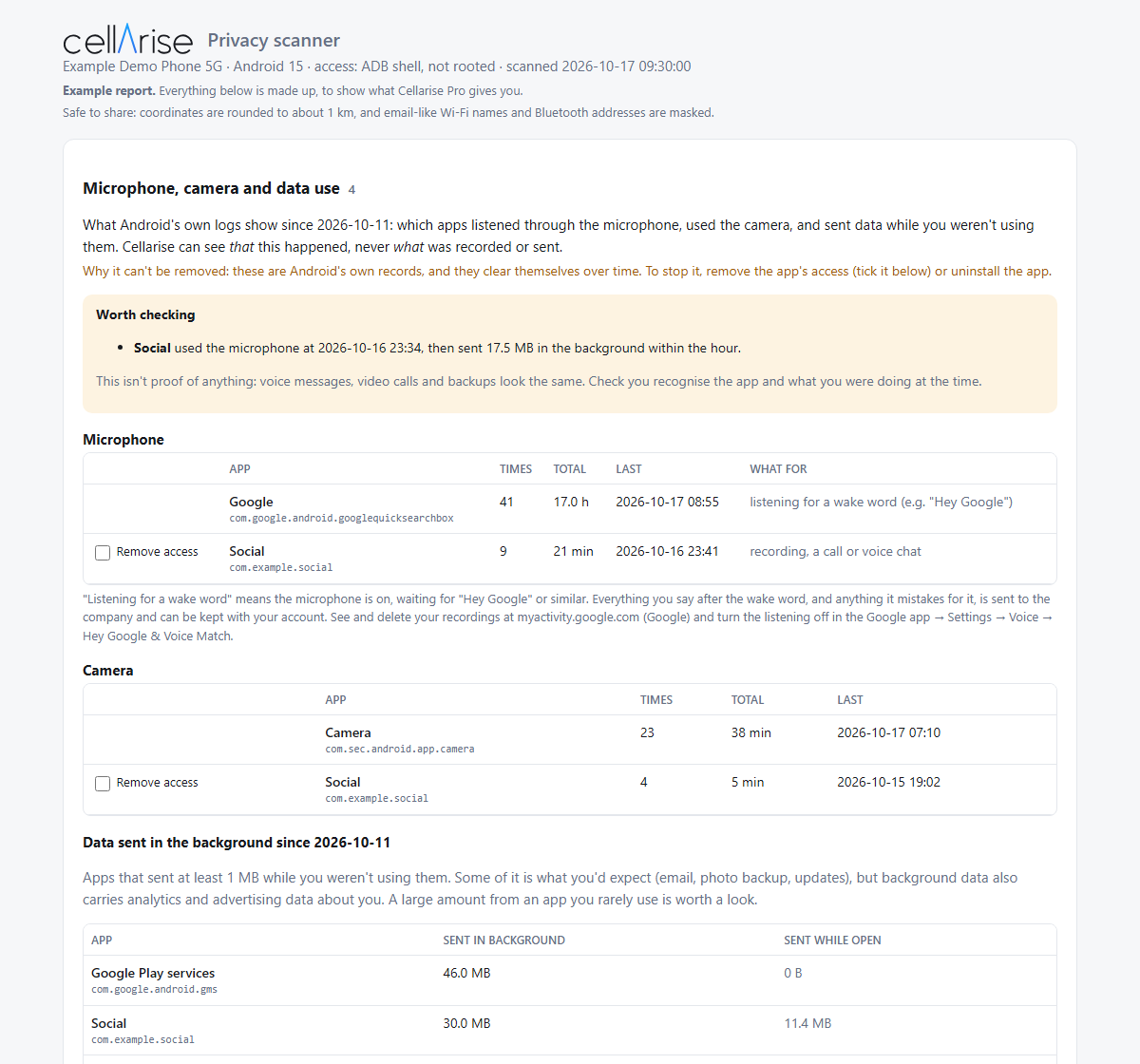
Free check, or Pro for US$29
The check is free. Cellarise Pro shows every detail and cleans it up: removes the location from your photos, takes away app access, fixes risky settings in one click with undo, and gives you a step-by-step plan. One payment, no subscription.
You can buy now on this phone. Your licence key is emailed to you; enter it on the computer when you run Cellarise.
Nothing is installed on your phone, and your phone's data never leaves your computer.
See what your phone gives away about you
Cellarise checks your Android phone through a USB cable and shows you, in plain English, which photos record where they were taken, which apps can use your location, microphone and camera, and which Wi-Fi networks and devices your phone remembers.
- Free and read-only. The check changes nothing on your phone.
- Private. It runs inside this browser window. Your phone's data never leaves this computer.
- Nothing to install. About 5 minutes to set up the first time, then about a minute to scan.
You'll need your Android phone, a USB cable that carries data, and your phone's PIN or pattern.
The example takes about 20 seconds to open and needs no phone.
Not at your phone or cable right now? Email yourself the link for later.
- On the phone, open Settings and search for Build number. Tap it 7 times and enter your PIN. You'll see "You are now a developer".
- In Settings, search for USB debugging, turn it on and tap OK.
- Plug the phone into this computer with a USB cable, and unlock it. If it asks what the USB connection is for, choose File transfer.
- Close other phone programs (Android Studio, Samsung Smart Switch, phone managers).
Where is Build number on my phone?
- Samsung
- Settings → About phone → Software information → Build number. Developer options appear at the bottom of Settings.
- Motorola
- Settings → About phone → Device details → Android version → Build number.
- Google Pixel
- Settings → About phone → Build number (at the bottom). Developer options are in Settings → System.
- Xiaomi, Redmi, POCO
- Settings → About phone → tap "OS version" (or "MIUI version") 7 times. Developer options are in Settings → Additional settings.
- OnePlus, OPPO, realme
- Settings → About device → Version → Build number.
- Anything else
- Use the search box at the top of Settings and type "build number".
Tapping does nothing? Phones set up for work or school, or as a child's phone with parental controls, can block Developer options.
Unlock your phone and look for "Allow USB debugging?" Tick "Always allow from this computer" and tap Allow.
No box on the phone?
- Unplug the cable and plug it back in with the phone unlocked, then click "Connect my phone" again.
- On the phone, open Developer options, tap Revoke USB debugging authorisations, then switch USB debugging off and on again. Replug and try again.
- Samsung: check Settings → Security and privacy → Auto Blocker is off. It blocks USB requests.
When you click, your browser shows a list of USB devices. Choose your phone and click Connect.
Scanning your phone...
Keep your phone plugged in and unlocked. This usually takes about a minute.
Something went wrong
The scan stopped before it finished. Check the phone is still plugged in and unlocked, then try again.